Create a Certificate Signing Request (CSR) and Add SSL Certificate to PGP Server (Symantec Encryption Management Server)
Article ID: 158133
Updated On:
Products
Encryption Management Server
PGP Encryption Suite
PGP Key Management Server
PGP Command Line
PGP Key Mgmt Client Access and CLI API
PGP SDK
Issue/Introduction
This article details how to create an Certificate Signing Request and then how to import the SSL certificate from your Certificate Authority to a Symantec Encryption Management Server (PGP Server).
Resolution
Create a Certificate Signing Request (CSR)
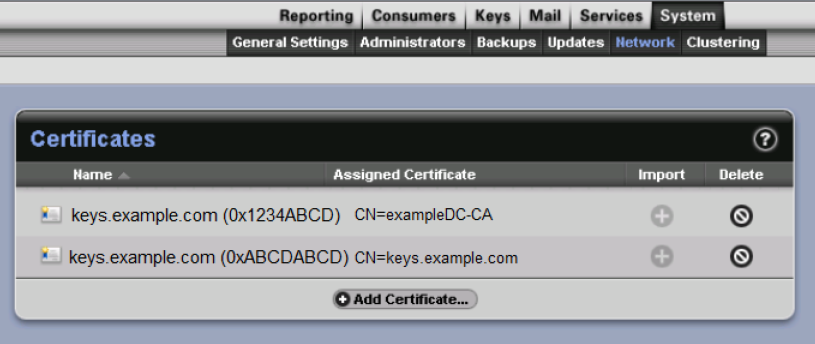
1. Under System > Network, select Certificates….
and then click Add Certificate.
2. The New SSL/TLS Certificate dialog box appears. Complete all the fields on this dialog box.
Note: If you have any questions about the specific field, you may select the help Icon in the upper right hand corner.
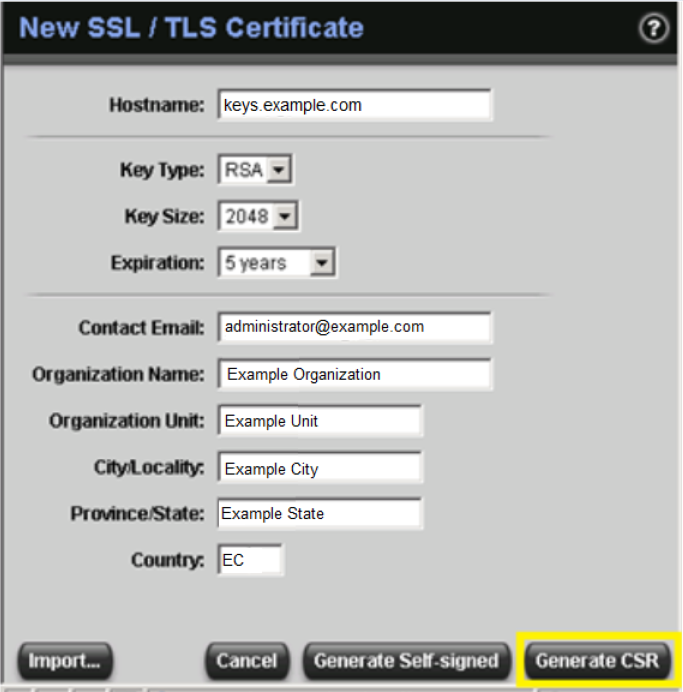
Note: If you have any questions about the specific field, you may select the help Icon in the upper right hand corner.
3. Click Generate CSR.
4. Copy the contents of the CSR dialog box. Be sure to get copy all the block data and then click OK.
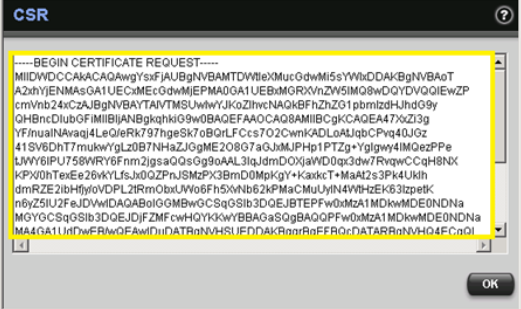
5. Paste the Certificate block data in an email or to a text file and then submit to your Certificate Authority (CA).
After the CA approves the certificate and sends the certificate to you, import the certificate to the server.
Import Certificate supplied by Certificate Authority (CA)
1. Under System > Network > Certificates, select the plus (+) sign under Import for your pending certificate.
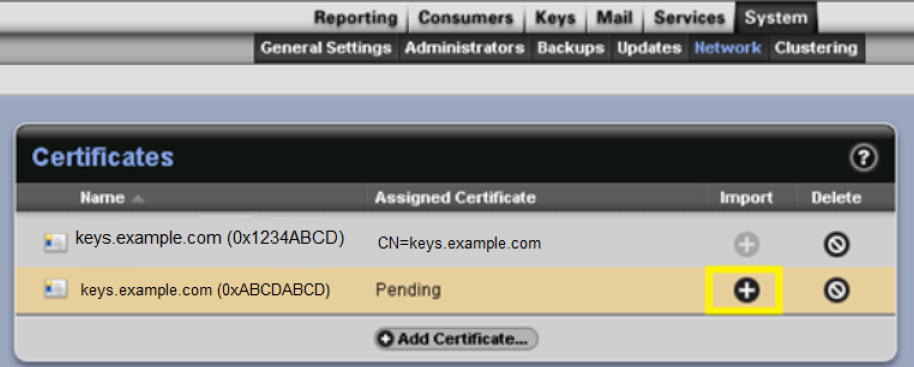
2. Paste the validated certificate text block that was sent to you by the CA into the Certificate BlockD box.
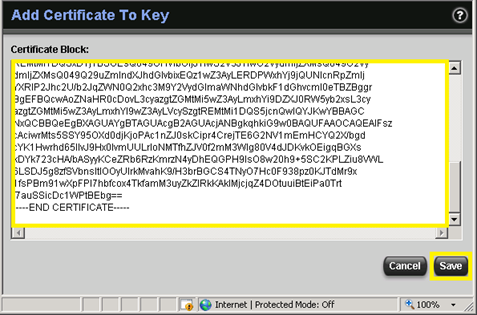
3. Click Save.
The Add Certificate to Key dialog box disappears. The certificate is ready for inspection and can be assigned to an interface.
Assign certificate to network interface
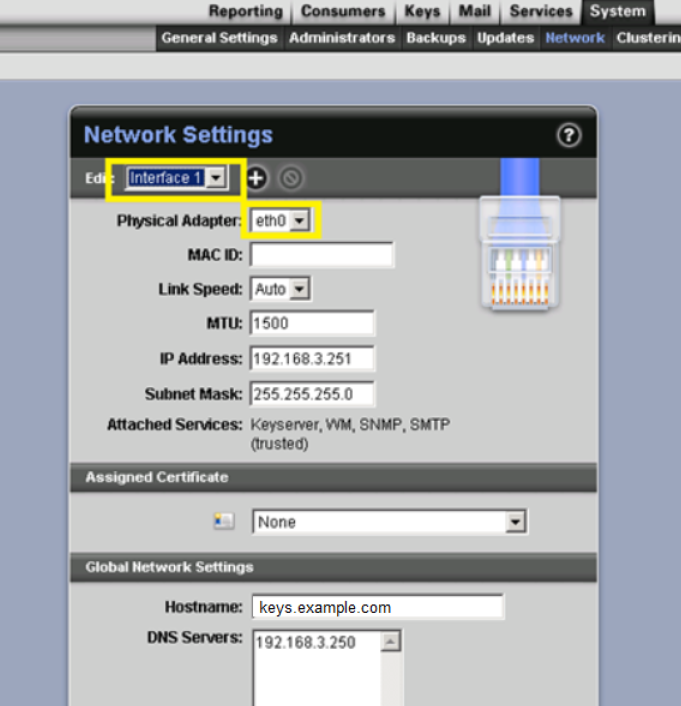
1. Under System > Network, choose the drop down box for your desired interface.
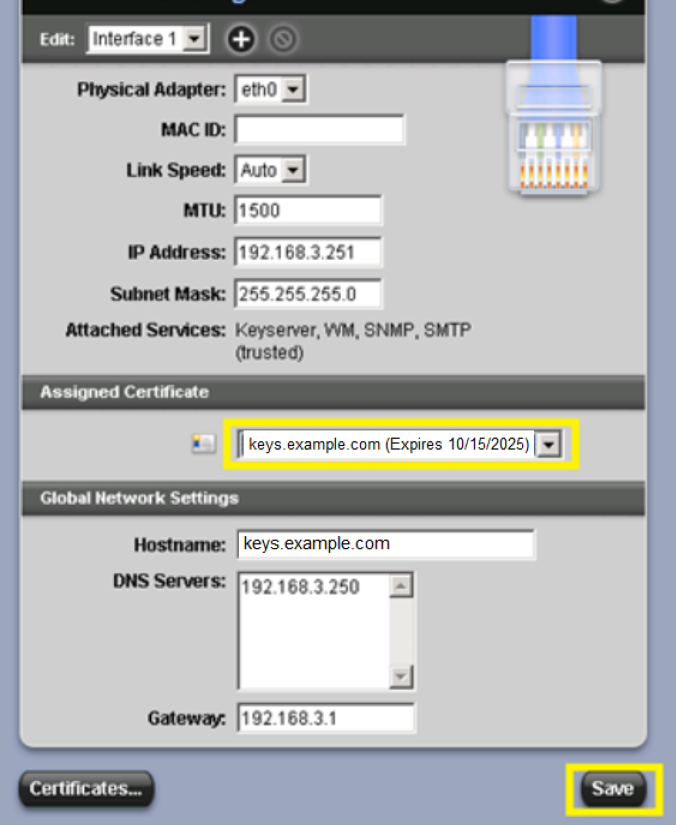
2. In the Assigned Certificate section, click the drop-down menu and select the appropriate certificate, then click Save. The system will reboot.
Note: There may be a need to add certificates of the certificate chain to the Keys / Trusted Keys, if they are not already there, and trust them for TLS.
For example, you might need to import the root issuing certificate and an intermediate certificate.
Applies To
PGP Encryption Server
Symantec Encryption Management Server
PGP Universal Server
Additional Information
ISFR-2392 - If you need to generate TLS Certificates with a 4096 keysize, please reach out to Symantec Encryption Support for further guidance.
Feedback
Yes
No
Powered by
