Steps to Retrieve and Upload Avi Controller Certificate in License Hub
Article ID: 441019
Updated On:
Products
VMware Avi Load Balancer
Issue/Introduction
During License Hub onboarding, the Avi Controller certificate needs to be uploaded manually to establish a trusted connection between License Hub and the Avi Controller. This requirement is commonly seen in environments using custom CA or self-signed certificates, where certificate validation may otherwise fail during onboarding.
Environment
- Avi Controller: 32.1.1
- VMware License Hub 5.1.2
Resolution
Step 1: Retrieve the System Certificate from the Avi Controller
- SSH to the Avi Controller leader node using
admincredentials. - Copy the
fetch_cert.shscript to the following directory on the Avi Controller: (Script is attached to the KB)
/opt/avi/scripts/- Provide execute permission to the script:
admin@broadcom-local:~$ chmod +x /opt/avi/scripts/fetch_cert.sh
- Run the script as sudo with IP
127.0.0.1or the Avi Controller IP address.
Example:
admin@broadcom-local:~$ sudo /opt/avi/scripts/fetch_cert.sh 127.0.0.1
Avi Controller     : 127.0.0.1:443
SNI Hostname       : 127.0.0.1
CA Validation      : DISABLED (Blind trust)
----------------------------------------
Fetching certificate...
Successfully fetched certificate!
----------------------------------------
Success: Certificate chain saved to 'full_chain.pem'.
Note:
Use the Fully Qualified Domain Name (FQDN) only if it is specifically required in the deployment environment.
- Wait for the script execution to complete successfully.
- Open the generated certificate file.
- The
full_chain.pemis saved to whatever directory you're in when you execute the script — your current working directory.
Example:
cat full_chain.pem- Copy the complete certificate content, including:
-----BEGIN CERTIFICATE-----
...
-----END CERTIFICATE-----
Step 2: Upload the Certificate into License Hub
- Navigate back to the License Hub onboarding UI.
- Go to:
Endpoint Management > Onboard an Endpoint- Locate the Certificate field during onboarding.
- Paste the copied certificate content into the field.
- Continue with the onboarding workflow.
- Verify that the connection between License Hub and the Avi Controller is established successfully.
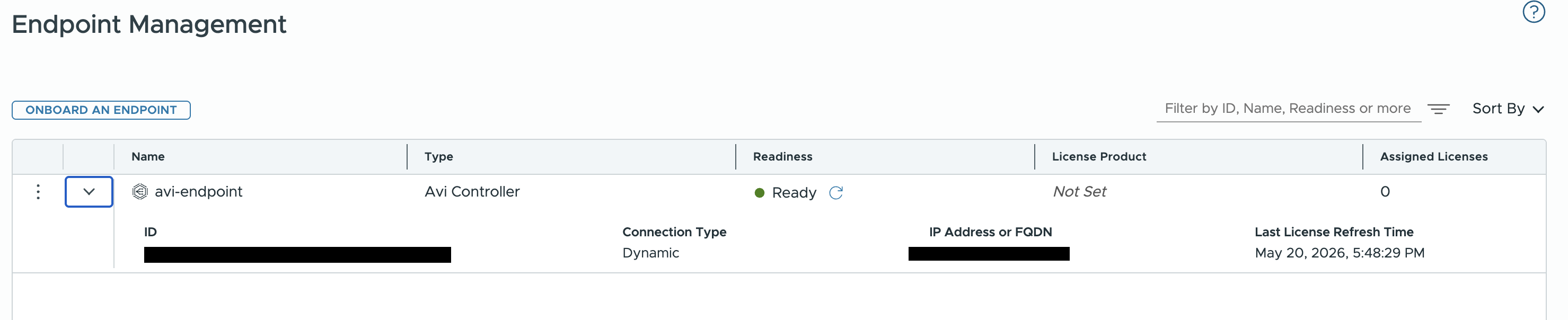
Note: Once the endpoint is successfully onboarded, it will be listed in the Endpoint Management section as shown below on the License Hub.
Additional Notes
- Ensure the entire certificate chain is copied correctly.
- Missing intermediate certificates may cause onboarding failures.
- If certificate validation issues persist, verify:
- DNS/FQDN resolution
- Certificate validity
- Time synchronization between systems
- Correct controller node selection
Attachments
Feedback
Yes
No
Powered by
