Excessive “Pending Reboot” Notifications After Patch Installation in ITMS Patch Management
Article ID: 435000
Updated On:
Products
Issue/Introduction
You have received reports regarding frequent “restart required” or reboot prompt notifications (every 5–15 minutes) after deploying software updates via Patch Management. The issue persists even after modifying policies and clearing agent cache components.
Settings in the SMP Console:
Environment
ITMS 8.7.x, 8.8.x
Patch Management 8.7.x, 8.8.x
Cause
This issue is caused by Patch Management configuration—specifically, how reboot behavior and patch cycles are scheduled.
When patch cycles run frequently and reboot settings are configured using scheduled triggers, the agent repeatedly generates reboot requests. Additionally, older versions of Patch Management do not consolidate reboot requests, resulting in repeated user prompts.
Frequent reboot prompts are triggered due to misconfigured patch and reboot schedules, including:
| Configuration Issue | Impact |
|---|---|
| Frequent Patch Cycles (e.g., every 2–10 hours) | Each cycle re-triggers reboot checks |
| Scheduled reboot setting with repetition (e.g., every 5 minutes) | Causes continuous user prompts |
| Agent limitation (pre-8.8.2) | Cannot consolidate reboot requests |
| Multiple updates requiring reboot | Each update triggers independent reboot requests |
Supporting Evidence from Logs
Example log entry showing frequent reboot scheduling:
enterRebootScheduled()() - <schedule tz="Local" start="2008-01-01 00:00:00 "><trigger type="Daily" exact="True" at="00:00:00 " duration="1.00:00:00" repetition="00:05:00" frequency="1"/></schedule>This indicates:
- Reboot checks repeating every 5 minutes
- Causing continuous prompt cycles
Additional Contributing Factors
- Default Software Update Plug-in Policy still active or partially applied
- Conflicting settings between default and custom policies
- “Postpone” option used repeatedly (delays but does not eliminate prompts)
- Patch cycles occurring before reboot completion
Frequent reboot prompts are not an agent defect but a configuration-driven behavior—amplified in older versions.
The most effective fix is:
- Align patch cycles and reboot timing
- Avoid scheduled reboot repetition
- Upgrade to Patch Management 8.8.2+ for improved handling
Resolution
A product fix is planned for ITMS 8.8.2 Release, which improves this behavior by tracking reboot requests and preventing repeated notifications for the same update.
Patch Management 8.8.2 Improvement
A fix was introduced where:
- The agent remembers reboot requests
- Prevents repeated prompts for the same update within a patch cycle
Behavior Change:
| Version | Behavior |
|---|---|
| Pre-8.8.2 | Reboot requested repeatedly |
| 8.8.2+ | Reboot request tracked (registry flag: RebootRequested) |
Recommended Configuration Changes
1. Modify Reboot Behavior
Navigate to:
- Manage > Policies > Software > Software Update Plug-in Policies
Update the following setting:
- Change:
- Scheduled
- To:
- At the end of software update cycle
Reason:
Scheduled reboots can trigger outside patch cycles and repeat frequently.
2. Adjust Patch Cycle Frequency
Navigate to:
- Manage > Policies > Software > Patch Management Settings
Reduce frequency:
| Setting | Recommendation |
|---|---|
| Patch Cycle | Avoid running every few hours |
| Suggested Interval | Daily or aligned with maintenance window |
Note: Frequent cycles will repeatedly trigger reboot checks.
3. Configure Restart Timing Properly
Recommended settings:
| Setting | Value |
|---|---|
| Allow delay | Max 8 hours |
| Forced restart | Within 9 hours |
| Alternative | Do not allow postponement |
Best Practice:
Ensure reboot occurs before next patch cycle begins.
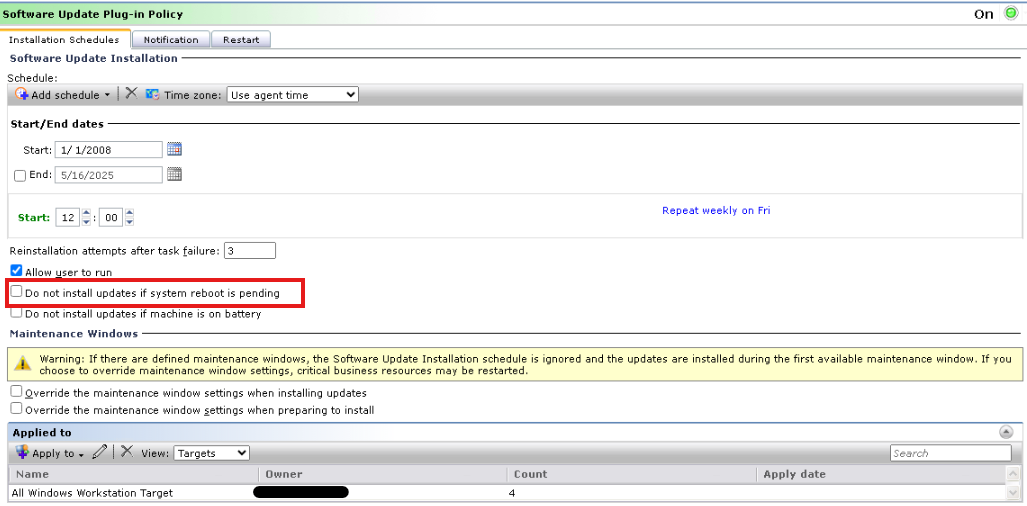
4. Review “Do Not Install Updates if Reboot Pending”
Evaluate this setting in both:
- Default Software Update Plug-in Policy
- Custom Patch Policies
| Scenario | Behavior |
|---|---|
| Enabled | Prevents new installs until reboot |
| Disabled | Allows installs but increases reboot prompts |
5. Verify Policy Assignment
Ensure correct policy targeting:
- Go to:
- Manage > Computers
- Confirm endpoint belongs to correct target (e.g., Workstation group)
- Verify:
- Default policy is disabled if using custom policies
6. Restart Agent and Validate Policy Update
Steps:
- Restart Altiris Agent Service
Trigger policy update:
aexagent /policy- Check Agent logs:
C:\ProgramData\Symantec\SMP\Logs\
Feedback
