vSphere Cluster Services (vCLS) agent VMs gets placed on local storage.
Article ID: 316021
Updated On:
Products
VMware Cloud Foundation
Issue/Introduction
Symptoms:
After upgrading vCenter in a VCF environment one of the vSphere Cluster Services (vCLS) agent VMs gets placed on local storage.
This can trigger the following errors: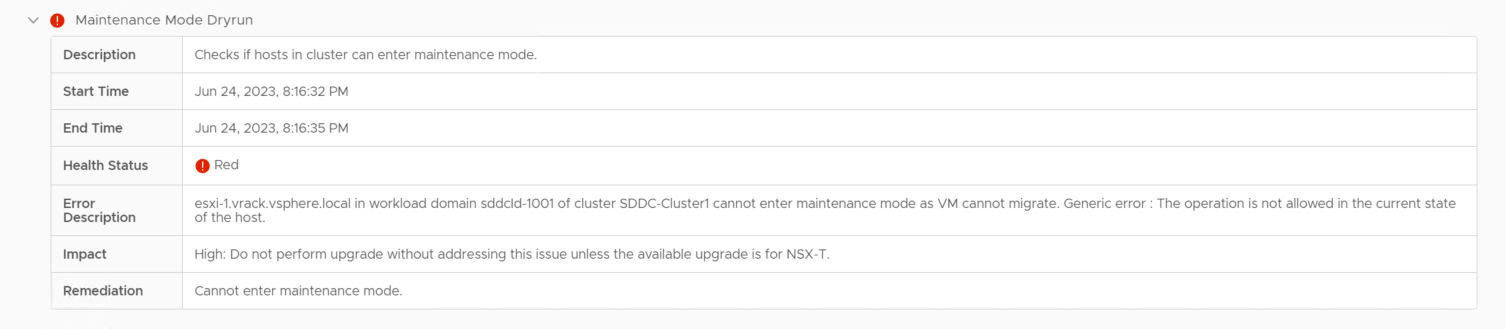
After upgrading vCenter in a VCF environment one of the vSphere Cluster Services (vCLS) agent VMs gets placed on local storage.
This can trigger the following errors:
- NSX-T Precheck: Maintenance Mode Dryrun
- ESXi Precheck: ESXi Maintenance Mode Dryrun
- ESXi hosts fail to enter maintenance mode.
Environment
VMware Cloud Foundation 4.x
Resolution
Issue is resolved in 5.x releases
Workaround:
Deactivate and reactivate vCLS on the cluster to deploy all the vCLS agent VMs to shared storage.
- Check the placement of the vCLS agent VMs for each cluster in your environment.
- In the vSphere Client, select Menu > VMs and Templates.
- Expand the vCLS folder.
- Select the first vCLS agent VM and click the Summary tab.
- In the Related Objects section, check the datastore listed for Storage. It should be the vSAN datastore. If a vCLS agent VM is on local storage, you need to deactivate vCLS for the cluster and then re-enable it.
- Repeat these steps for all vCLS agent VMs.
- Deactivate vCLS for clusters that have vCLS agent VMs on local storage.
- In the vSphere Client, click Menu > Hosts and Clusters.
- Select a cluster that has a vCLS agent VM on local storage.In the web browser address bar, note the moref id for the cluster.
- For example, if the URL displays as https://vcenter-.vrack.vsphere.local/ui/app/cluster;nav=h/urn:vmomi:ClusterComputeResource:domain-c8:503a0d38-442a-446f-b283-d3611bf035fb/summary, then the moref id is domain-c8.
- Select the vCenter Server containing the cluster.
- Click Configure > Advanced Settings.
- Click Edit Settings.
- Change the value for config.vcls.clusters.<moref id>.enabled to false and click Save.
- If the config.vcls.clusters.<moref id>.enabled setting does not appear for your moref id, then enter its Name and false for the Value and click Add.
- Wait a couple of minutes for the vCLS agent VMs to be powered off and deleted.
- You can monitor progress in the Recent Tasks pane.
- Enable vCLS for the cluster to place the vCLS agent VMs on shared storage.
- Select the vCenter Server containing the cluster and click Configure > Advanced Settings.
- Click Edit Settings.
- Change the value for config.vcls.clusters.<moref id>.enabled to true and click Save.
- Wait a couple of minutes for the vCLS agent VMs to be deployed and powered on. You can monitor progress in the Recent Tasks pane.
- Verify the placement of the vCLS agent VMs to make sure they are all on shared storage
Additional Information
Feedback
Yes
No
Powered by
